
[Windows 11/10] Three ways to turn computer off - Shut down , Sleep, and Hibernate
[Windows 11/10] Three ways to turn computer off - Shut down , Sleep, and Hibernate
There are many ways to shut down your computer: You can turn the computer off completely, make the computer sleep, or let the computer enters hibernate mode. The following article introduces the operation and description of each mode in a nutshell.
Please go to the corresponding instruction based on the current Windows operating system on your computer:
- Windows 11
- Windows 10
Windows 11 operating system
Table of Contents:
- Shut down
- Sleep
- Hibernate
Shut down
The unsaved data will be lost after the computer shuts down. Please make sure your data has been saved, and then turn the computer off.
- Click the [Start] icon on the taskbar①, select the [Power] icon② and then select [Shut down]③.

Back to Table of Contents
Sleep
After the computer enters Sleep mode, it uses very little power and starts up faster, so you are instantly back to where you left off. You don’t have to worry that you will lose your work because of your battery draining, because Windows automatically saves all your work and turns off the computer if the battery is too low. After the computer enters Sleep mode, you can resume working by pressing the computer’s power button, pressing any key on the keyboard, clicking a mouse button, or opening the lid on a laptop.
You can refer to the following methods to make your computer sleep:
- Click the [Start] icon on the taskbar①, select the [Power] icon② and then select [Sleep]③.
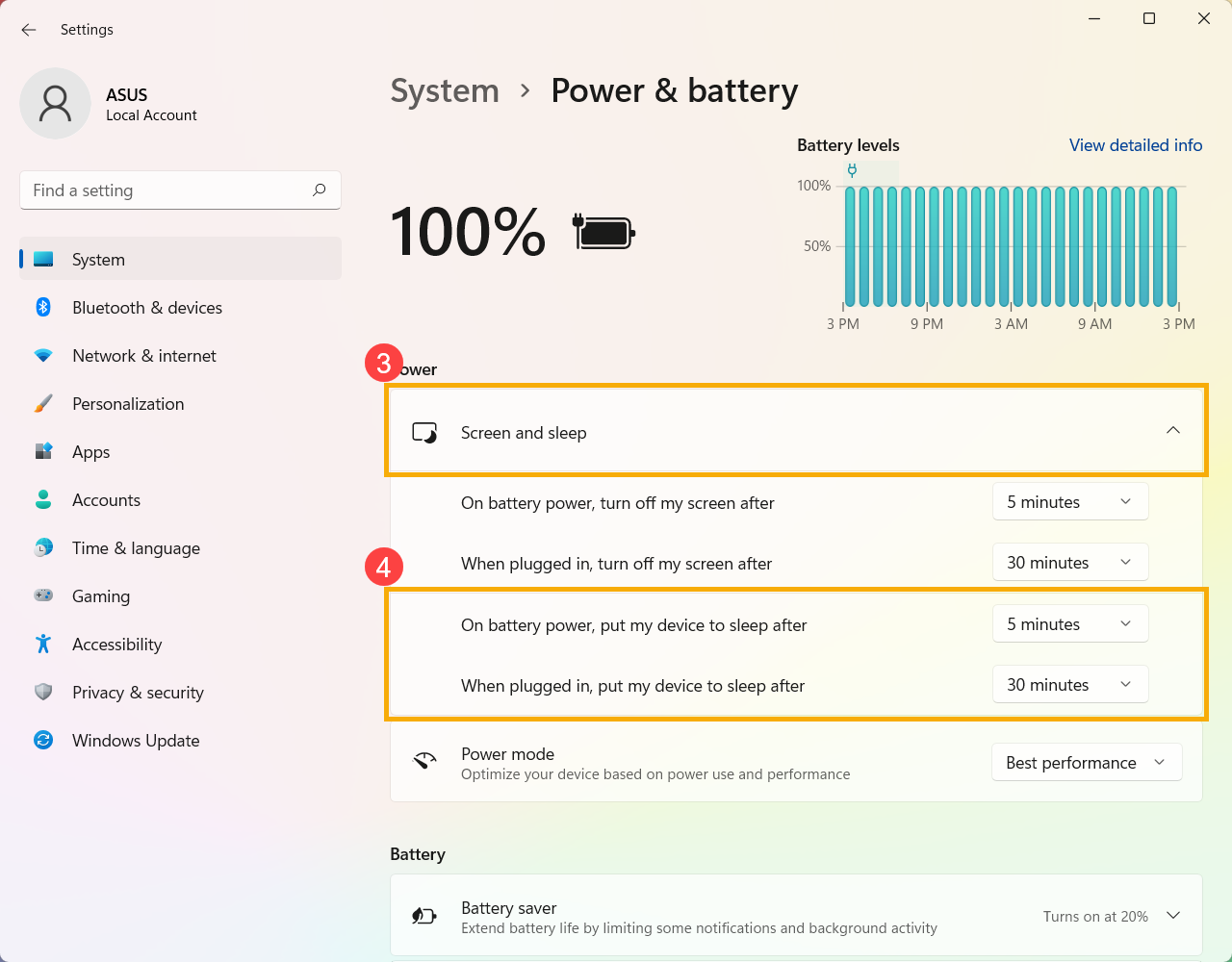
- When the computer is idle and you do not use it for a while, it will automatically enter Sleep mode. The following introduces the time to put your PC to sleep automatically:Type and search [Power, sleep and battery settings] in the Windows search bar①, then click [Open]②.
 Expand the [Screen and sleep] field③, you can set up the options of On battery power or When plugged in, that the time how long the computer will enter Sleep mode after the computer is idle④.Note: If your computer has a screen saver set and the screen saver time is earlier than the sleep time, the computer will first enter screen saver mode before entering sleep mode. If you want to check the screen saver settings, go to [Settings] > [Personalization] > [Lock screen], and then select [Screen saver].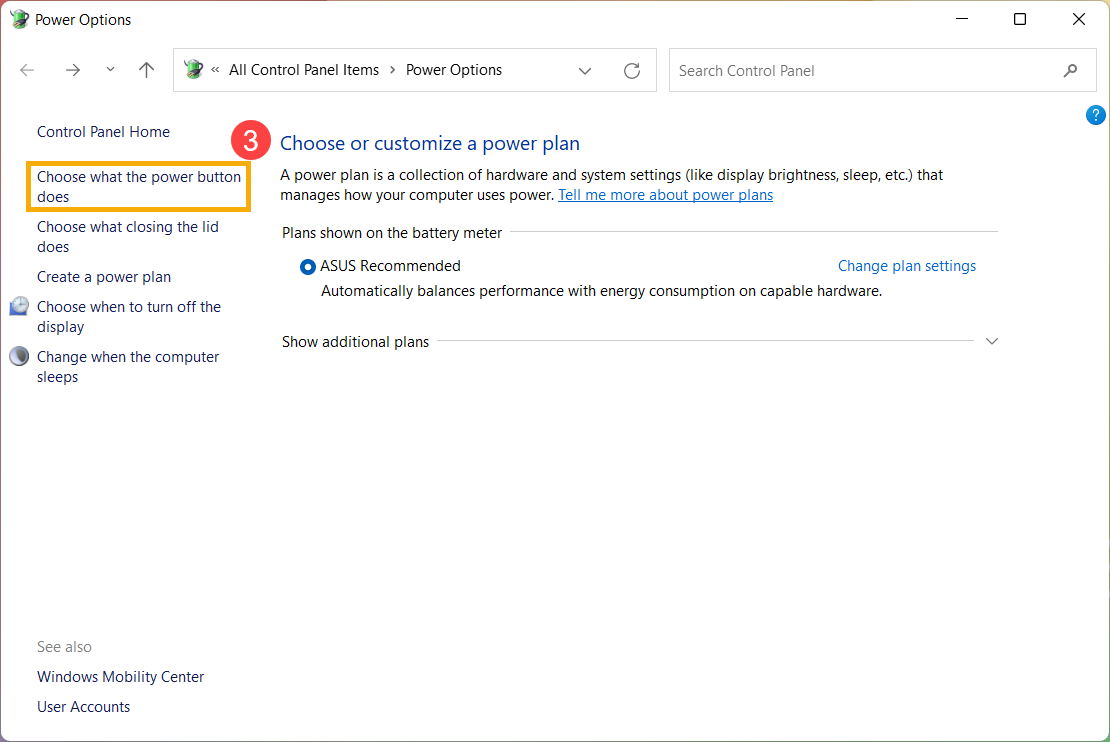
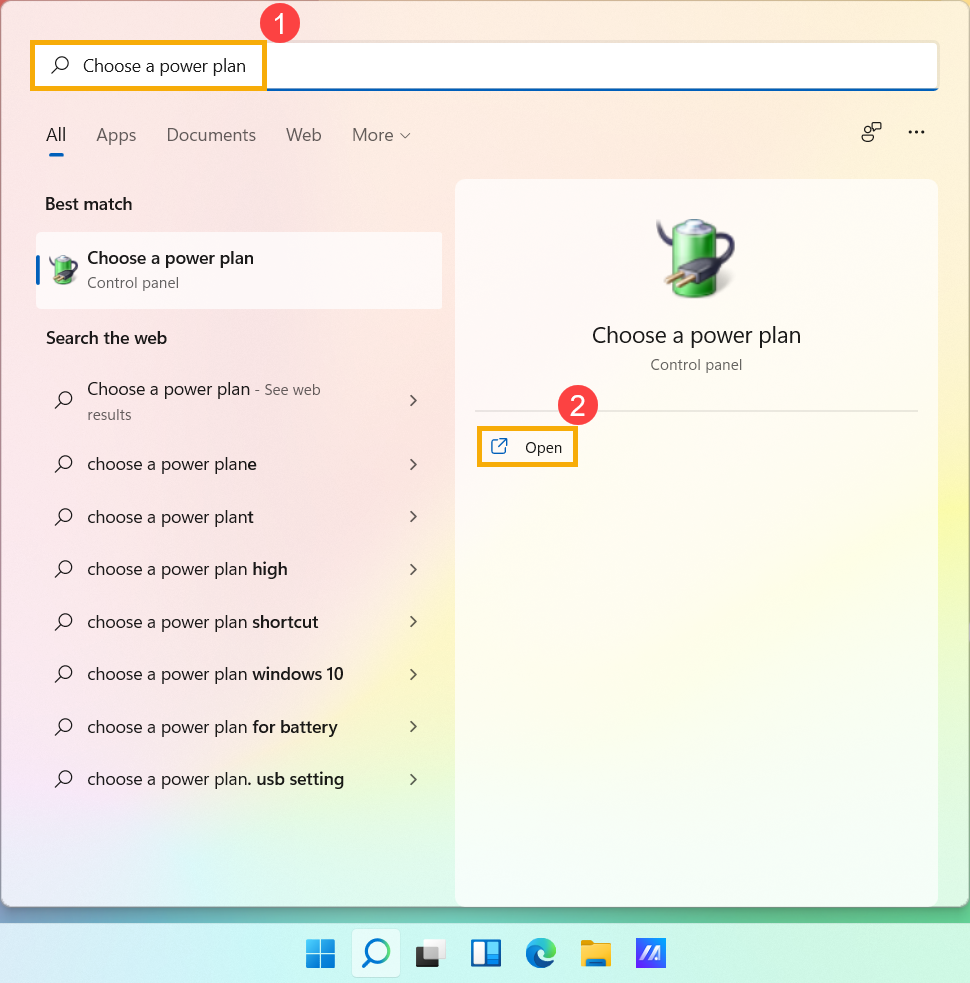
- When you close the lid of the laptop or press the computer’s power button, your computer will enter Sleep mode as well. The following introduces the action when you press the power button or close the lid:Type and search [Choose a power plan] in the Windows search bar①, then click [Open]②.
 Select [Choose what the power button does]③.
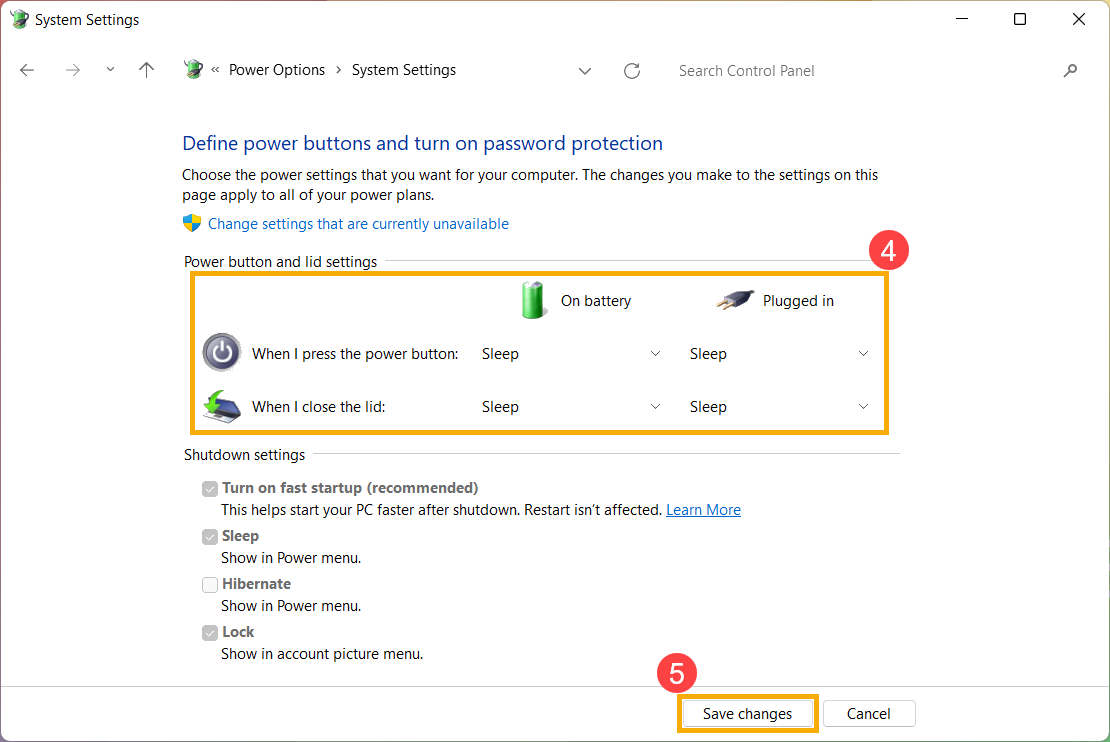
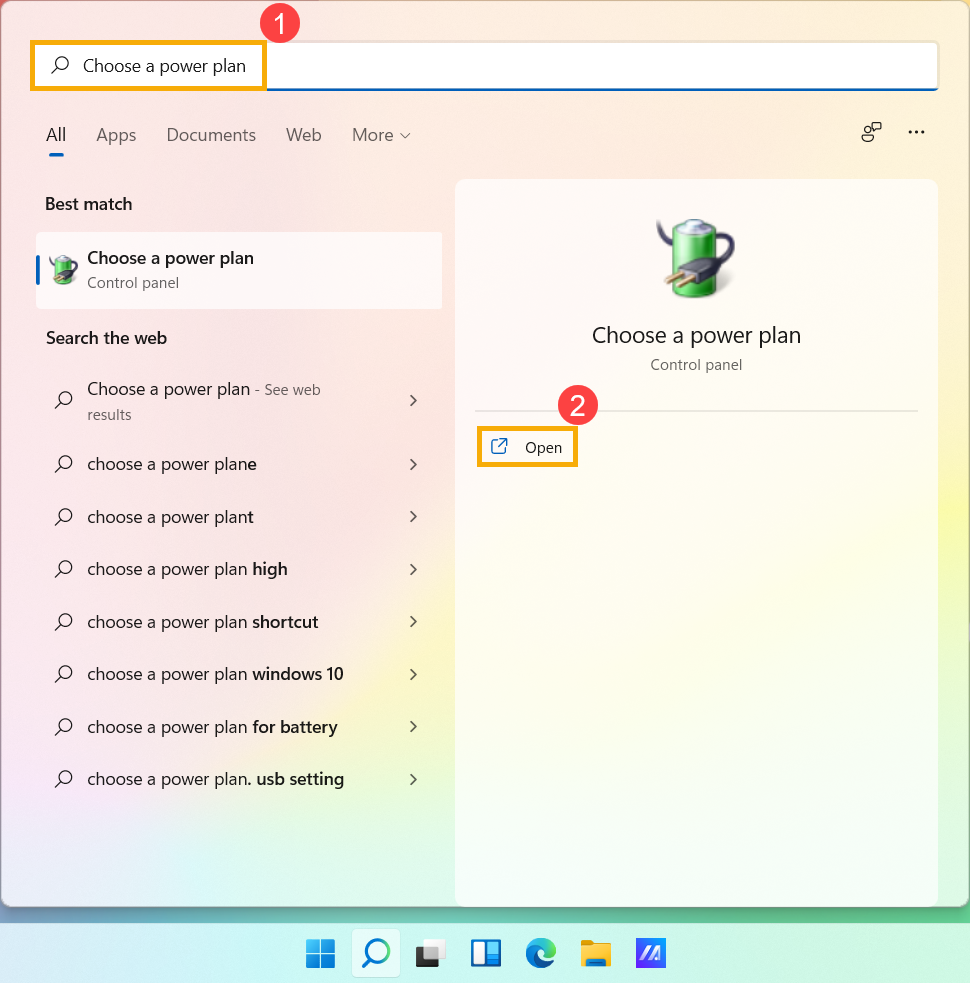 You can set up the options of On battery or Plugged in, that the action when you press the power button or close the lid④. (Do nothing, Sleep, Hibernate, Shut down) After the setup is completed, please select [Save changes]⑤.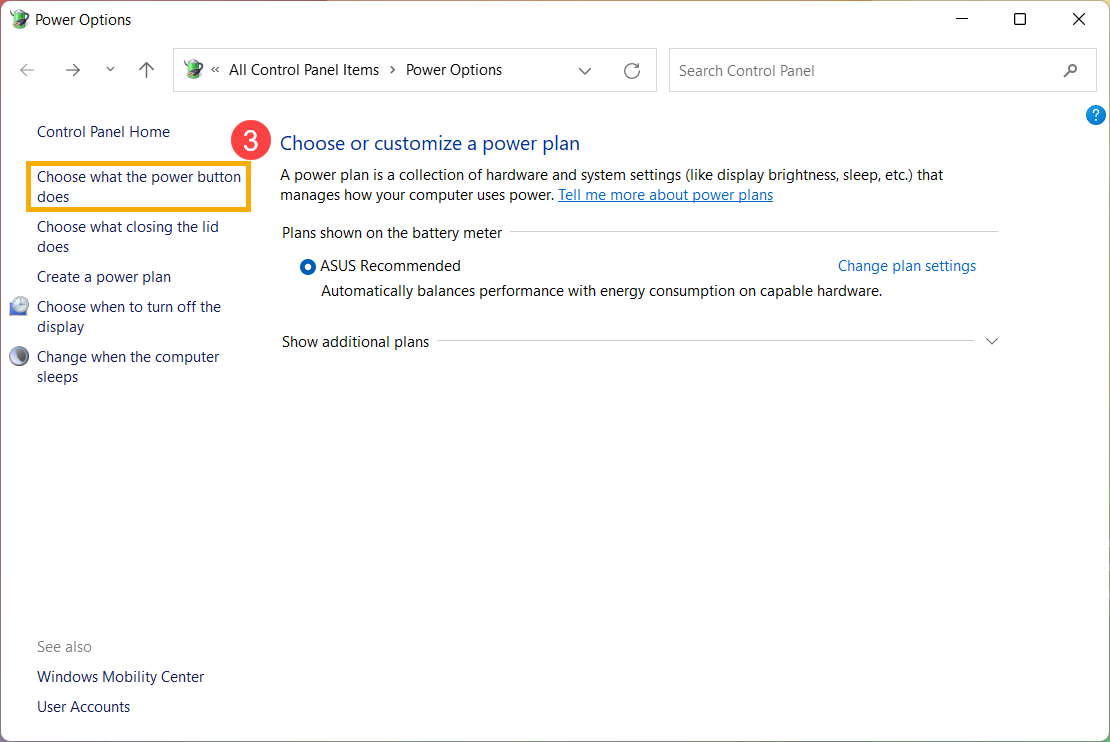
Back to Table of Contents
Hibernate
Hibernate uses less power than Sleep and when you start up the computer again, you are back to where you left off (though not as fast as Sleep). After the computer enters Hibernate mode, you can resume working by pressing the computer’s power button
- The hibernate option may be not available as default for some models, so you can refer to the following method to enable it.Type and search [Choose a power plan] in the Windows search bar①, then click [Open]②.
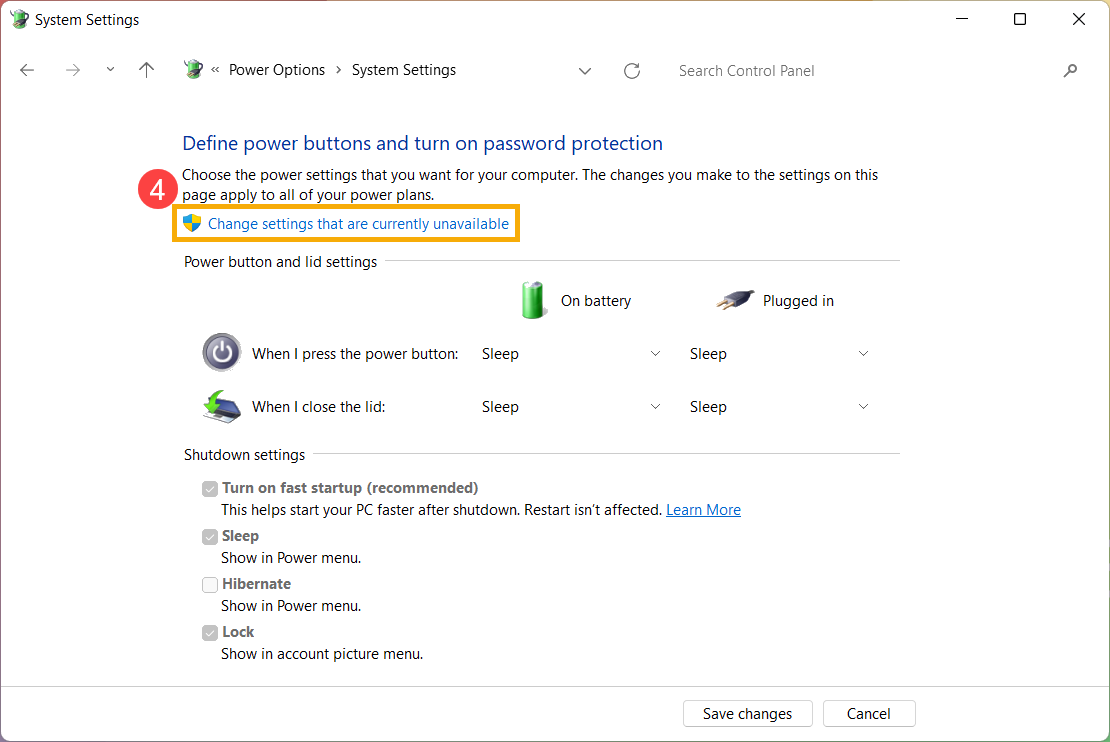 Select [Choose what the power button does]③.
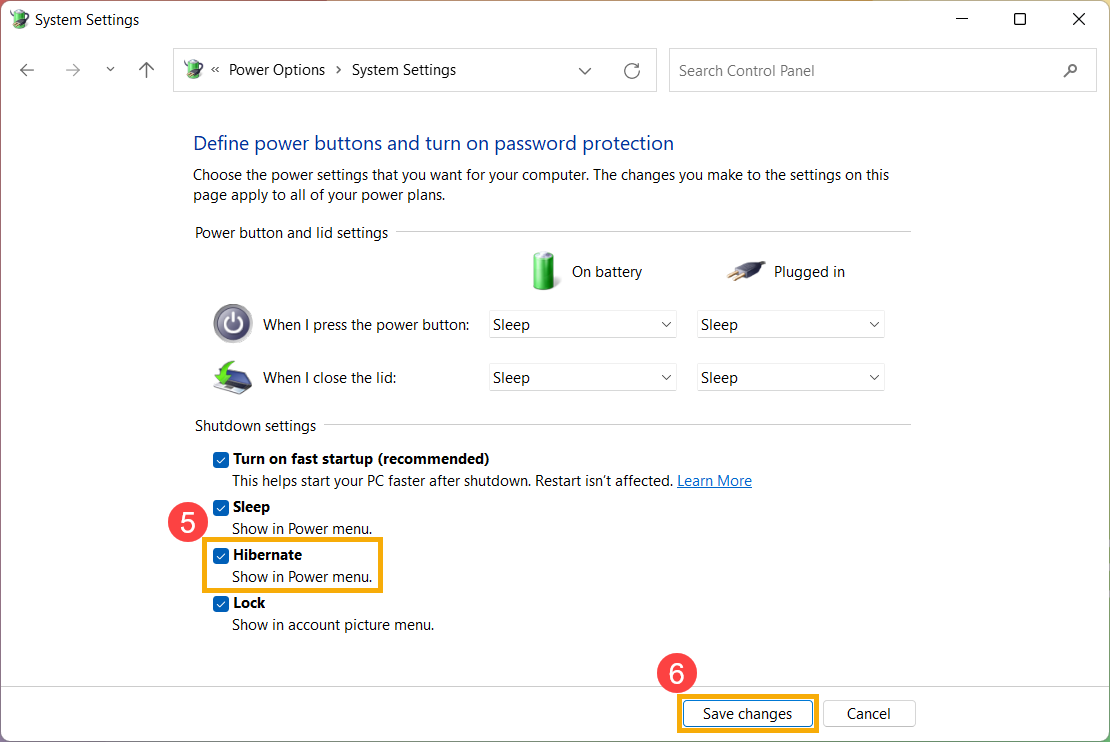 Click [Change settings that are currently unavailable]④.
 Check the box to Hibernate in Shutdown settings⑤, then select [Save changes]⑥.
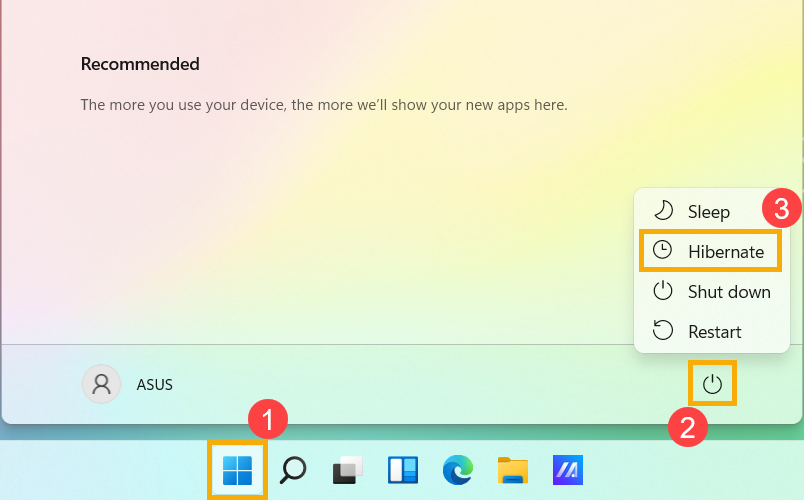
 - Now you will be able to hibernate your computer by the following way.Click the [Start] icon on the taskbar①, select the [Power] icon② and then select [Hibernate]③.
Back to Table of Contents
Windows 10 operating system
Table of Contents:
- Shut down
- Sleep
- Hibernate
Shut down
The unsaved data will be lost after the computer shuts down. Please make sure your data has been saved, and then turn the computer off.
- Click the [Start]
 icon on the far left of the taskbar①, select the [Power] icon② and then select [Shut down]③.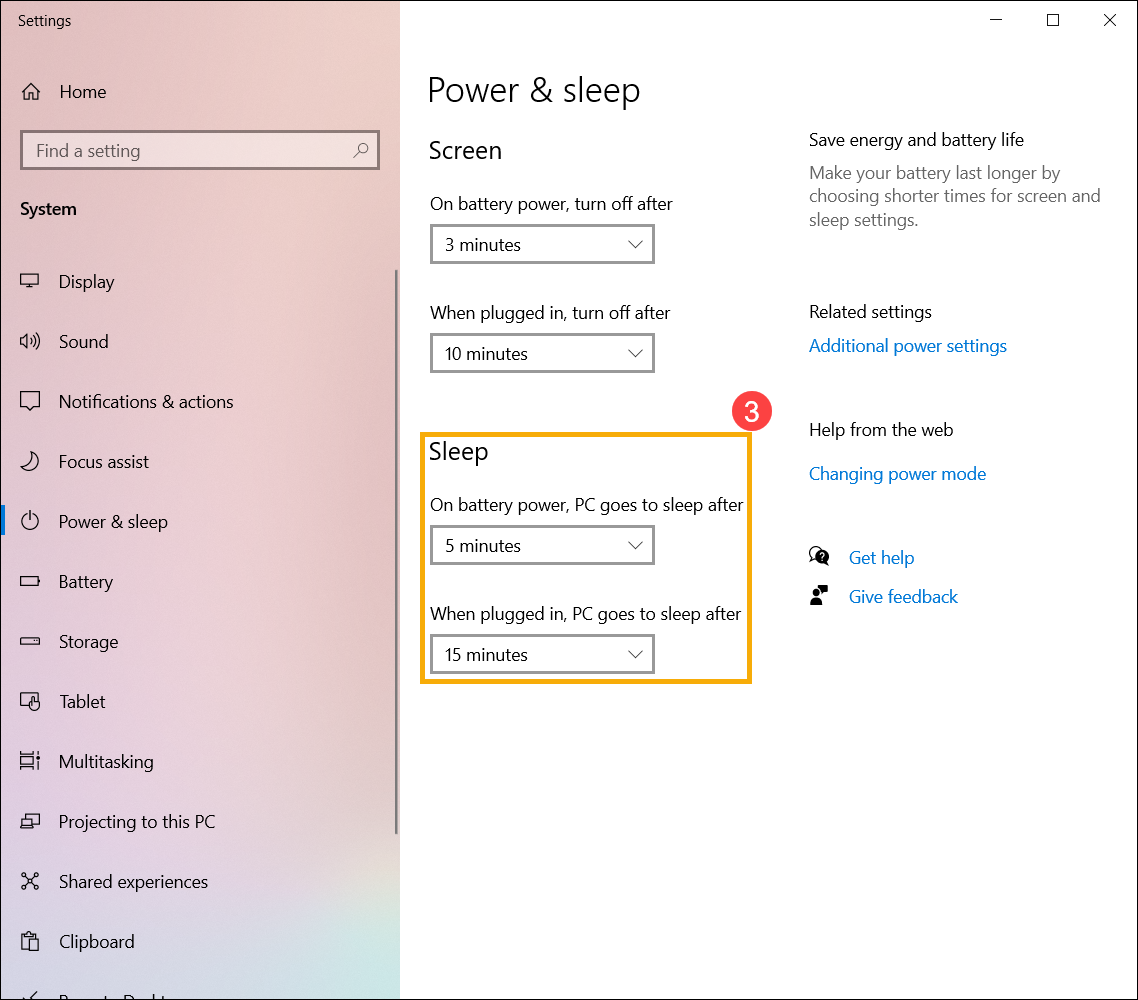
Back to Table of Contents
Sleep
After the computer enters Sleep mode, it uses very little power and starts up faster, so you are instantly back to where you left off. You don’t have to worry that you will lose your work because of your battery draining, because Windows automatically saves all your work and turns off the computer if the battery is too low. After the computer enters Sleep mode, you can resume working by pressing the computer’s power button, pressing any key on the keyboard, clicking a mouse button, or opening the lid on a laptop.
You can refer to the following methods to make your computer sleep:
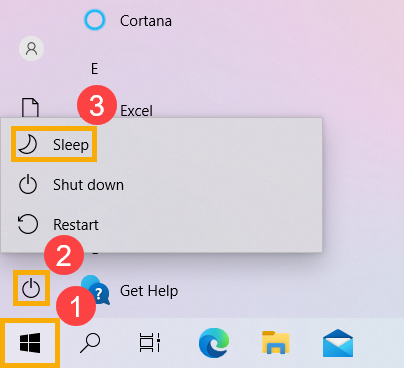
- Click the [Start]
 icon on the far left of the taskbar①, select the [Power]
 icon② and then select [Sleep]③.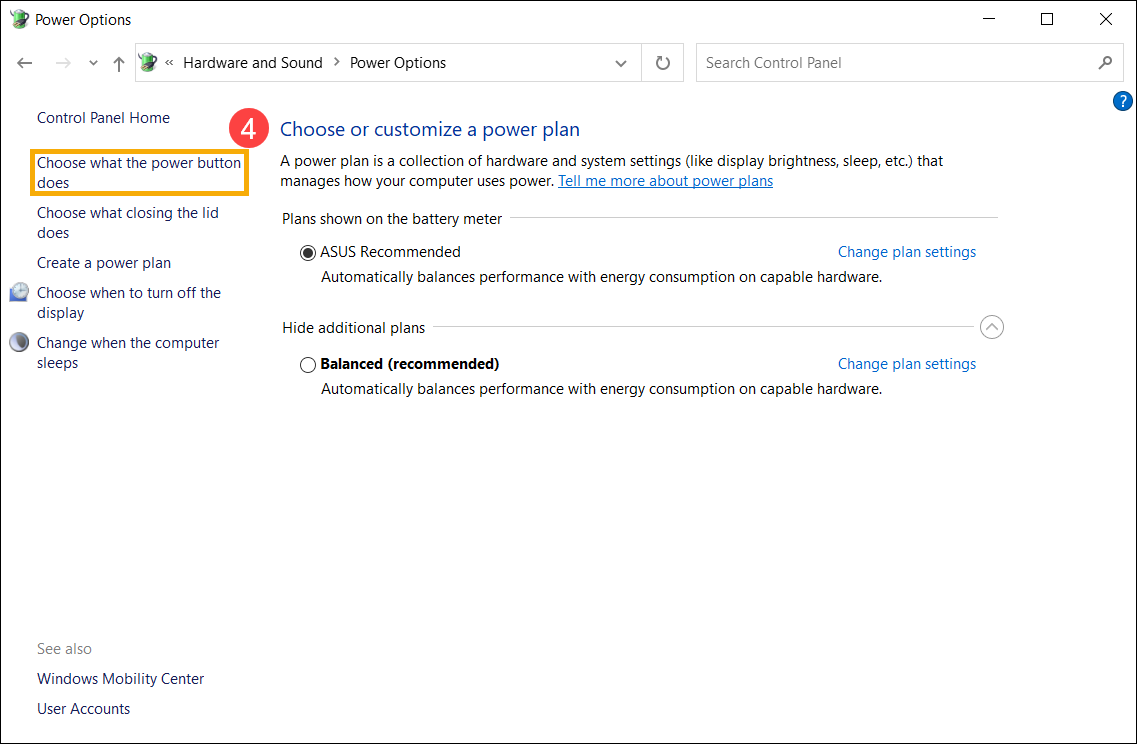
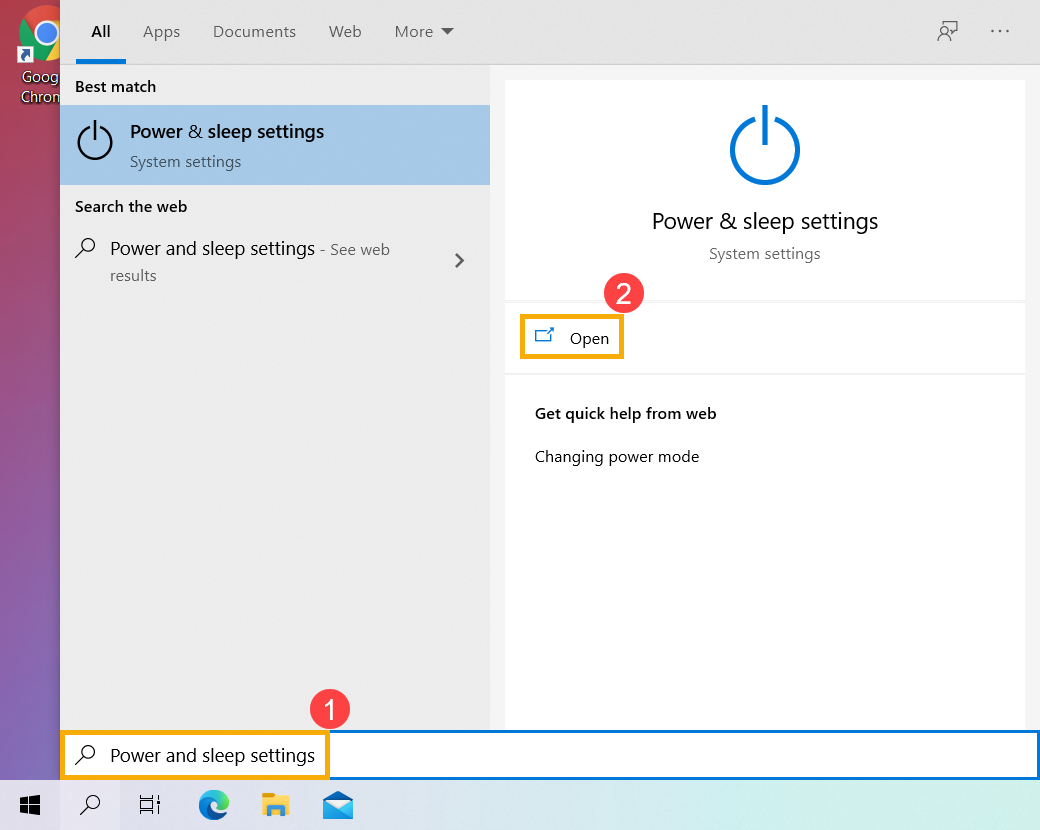
- When the computer is idle and you do not use it for a while, it will automatically enter Sleep mode. The following introduces the time to put your PC to sleep automatically:Type and search [Power & sleep settings] in the Windows search bar①, then click [Open]②.
 You can set up the options of On battery power or When plugged in, that the time how long the computer will enter Sleep mode after the computer is idle③.Note: If your computer has a screen saver set and the screen saver time is earlier than the sleep time, the computer will first enter screen saver mode before entering sleep mode. If you want to check the screen saver settings, go to [Settings] > [Personalization] > [Lock screen], and then select [Screen saver].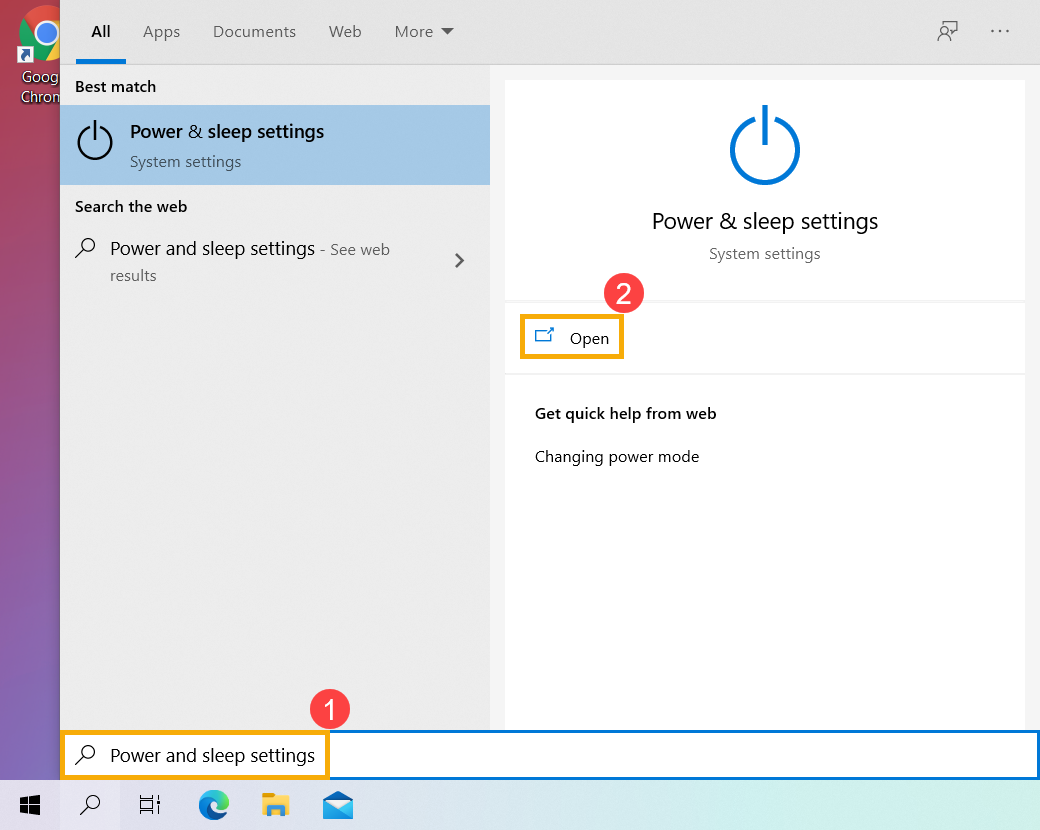
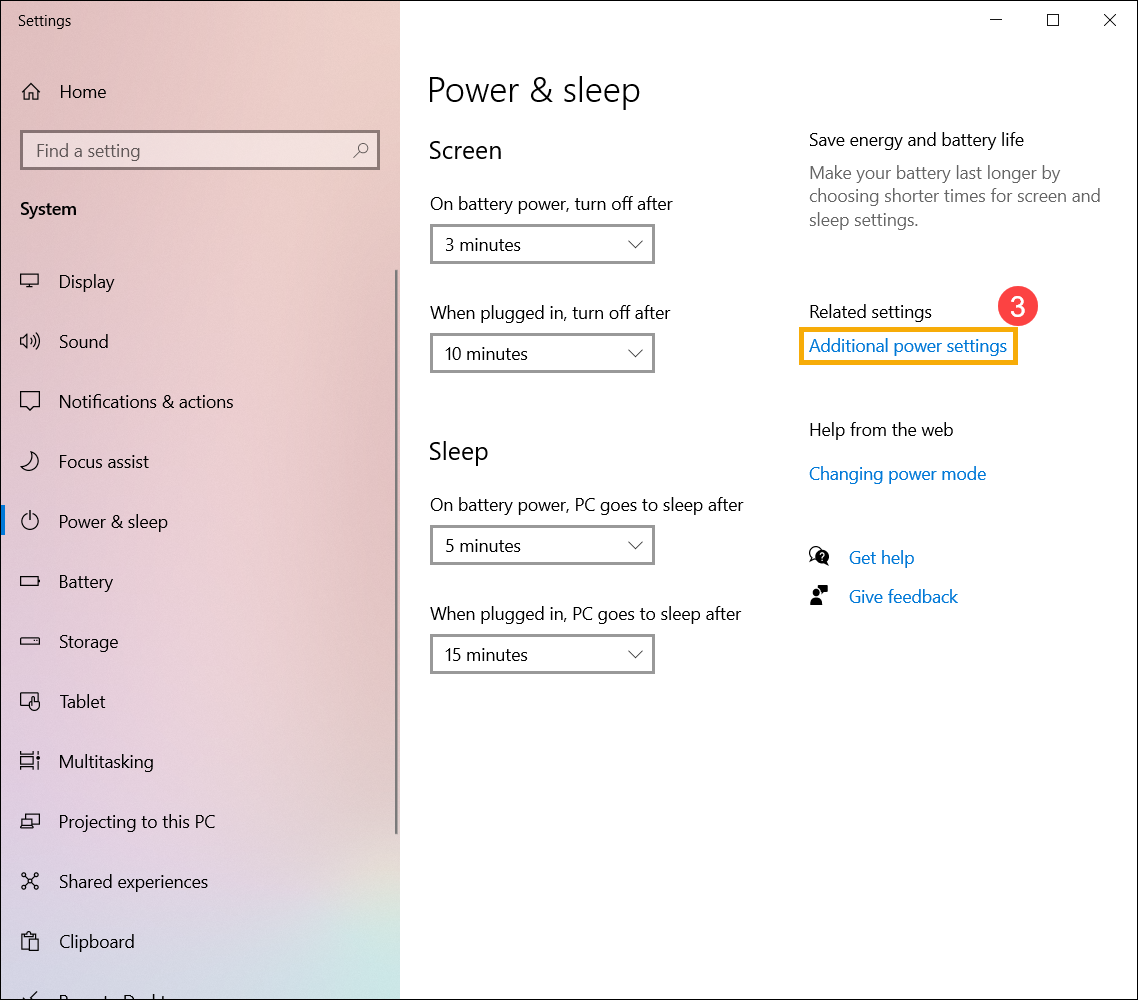
- When you close the lid of the laptop or press the computer’s power button, your computer will enter Sleep mode as well. The following introduces the action when you press the power button or close the lid:Type and search [Power & sleep settings] in the Windows search bar①, then click [Open]②.
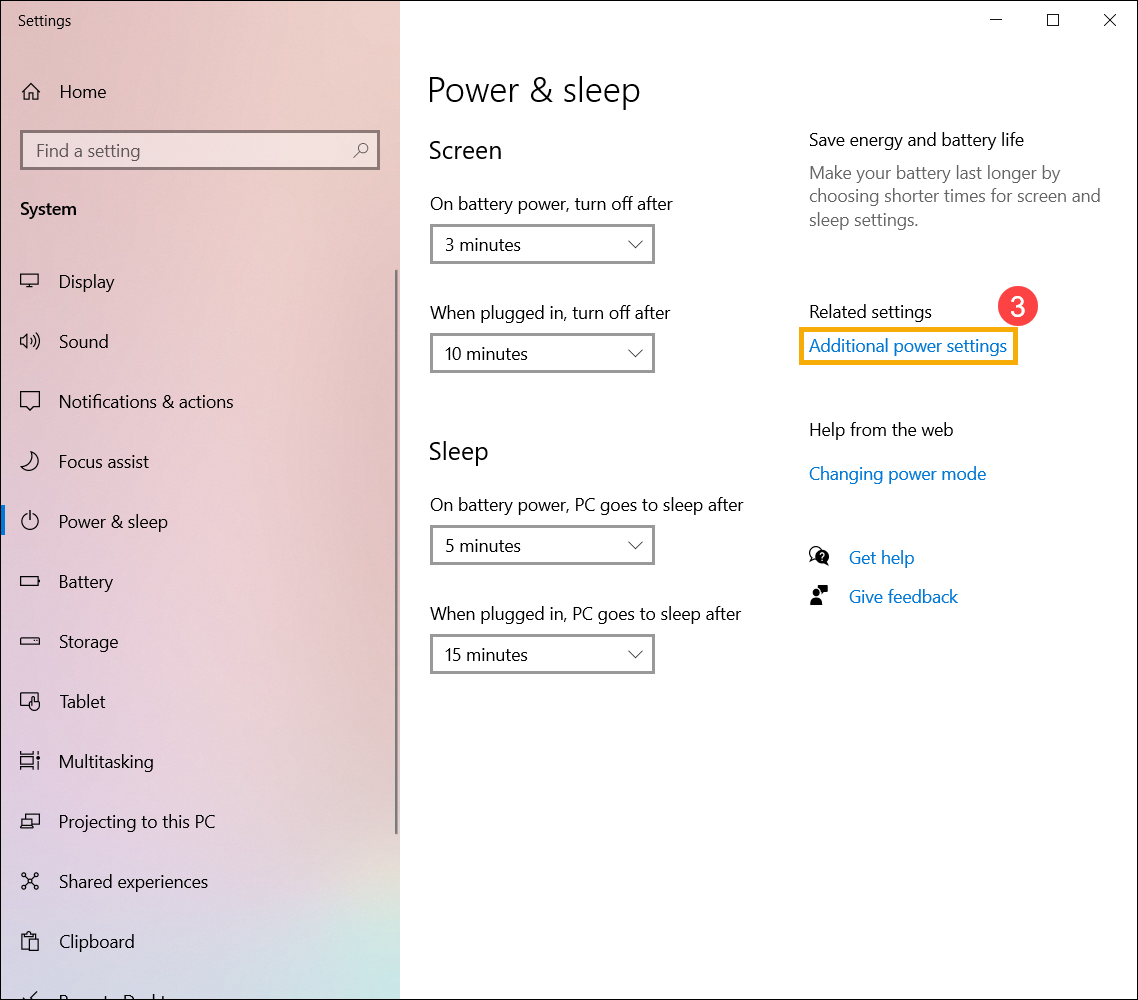 Select [Additional power settings]③.
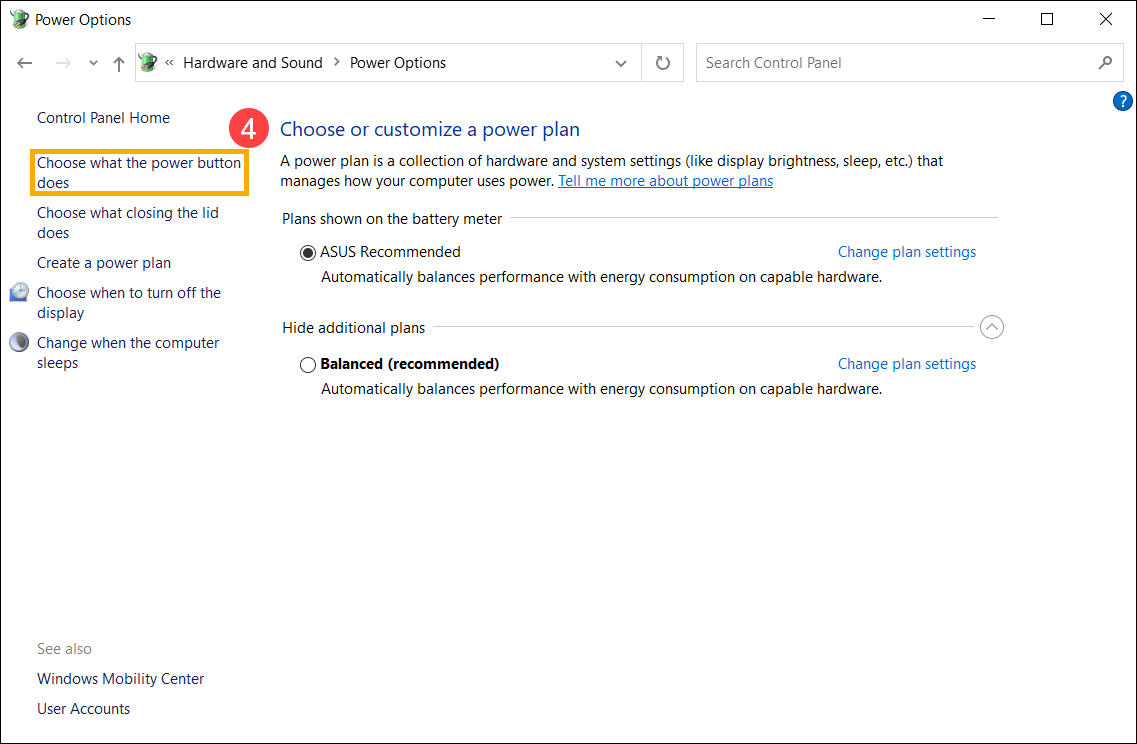 Select [Choose what the power button does]④.
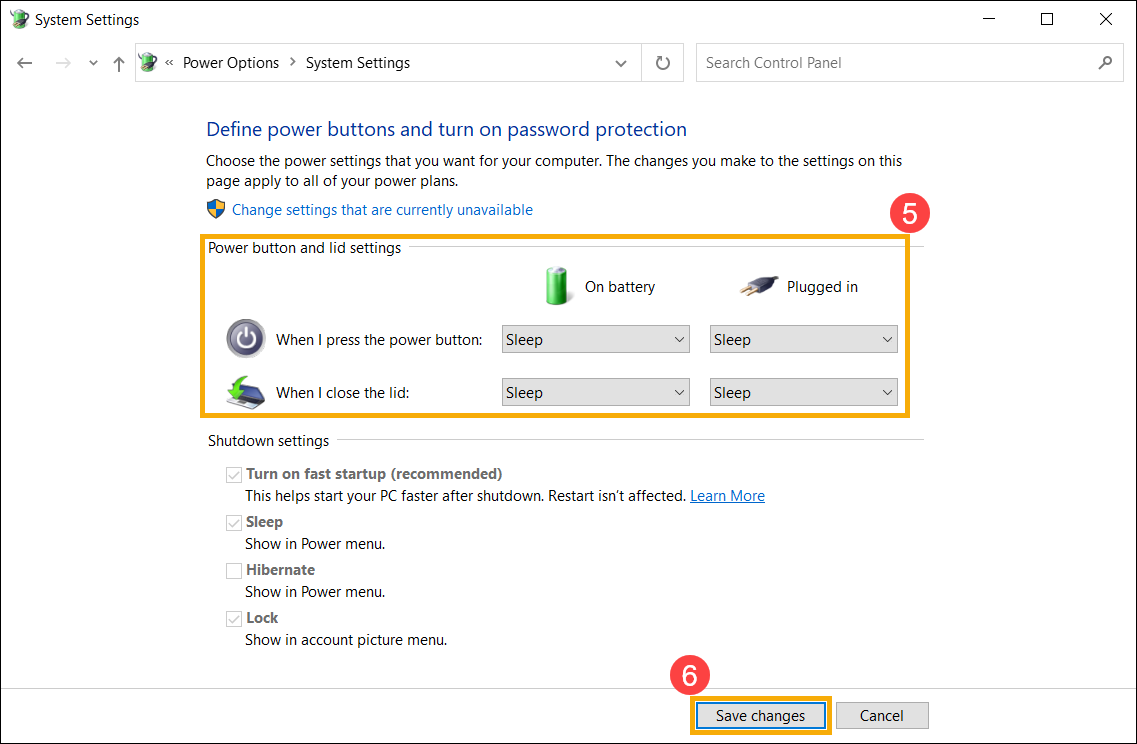
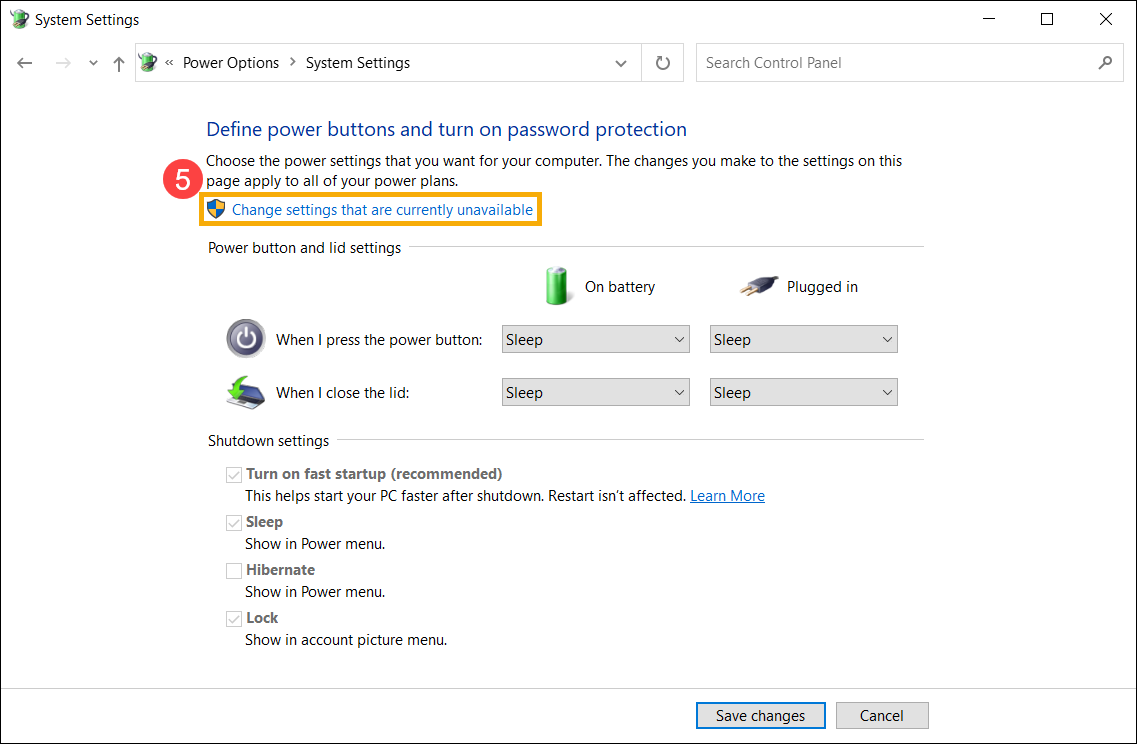 You can set up the options of On battery or Plugged in, that the action when you press the power button or close the lid⑤. (Do nothing, Sleep, Hibernate, Shut down)After the setup is completed, please select [Save changes]⑥.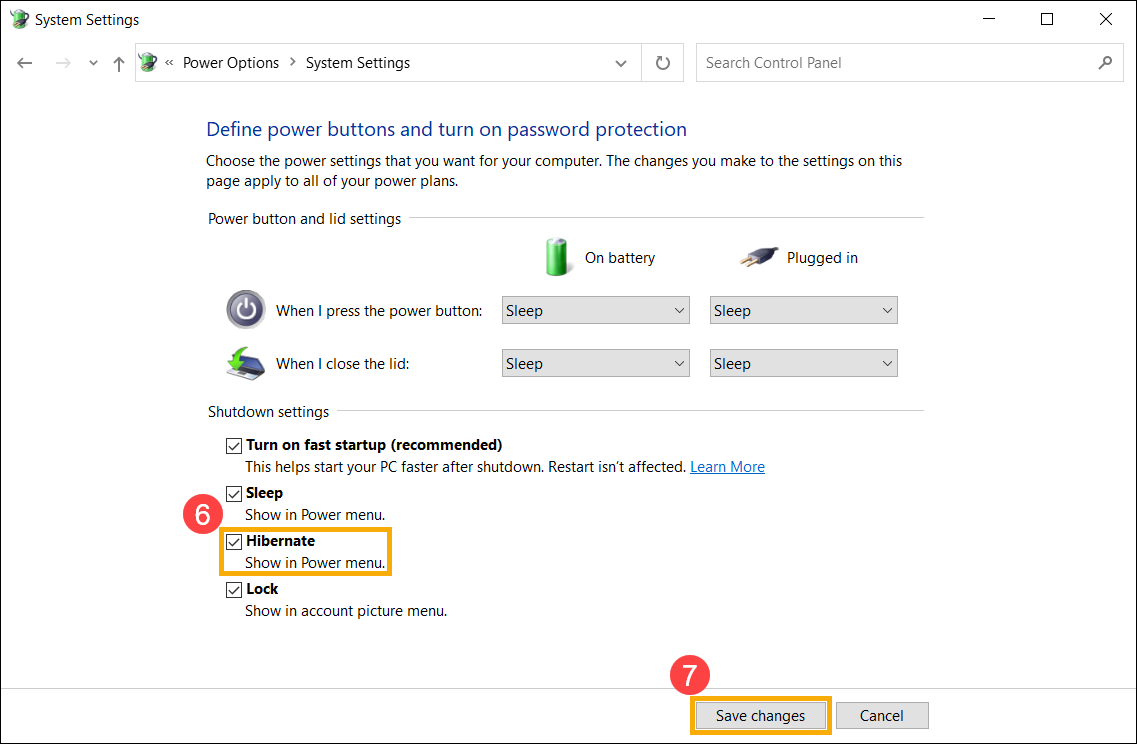
Back to Table of Contents
Hibernate
Hibernate uses less power than Sleep and when you start up the computer again, you are back to where you left off (though not as fast as Sleep). After the computer enters Hibernate mode, you can resume working by pressing the computer’s power button
- The hibernate option may be not available as default for some models, so you can refer to the following method to enable it.Type and search [Power & sleep settings] in the Windows search bar①, then click [Open]②.Select [Additional power settings]③.Select [Choose what the power button does]④.
 Click [Change settings that are currently unavailable]⑤.Check the box to Hibernate in Shutdown settings⑥, then select [Save changes]⑦.
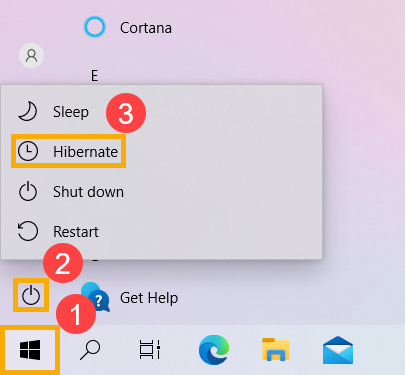
 - Now you will be able to hibernate your computer by the following way.Click the [Start] icon on the far left of the taskbar①, select the [Power] icon② and then select [Hibernate]③.
Back to Table of Contents
Link nội dung: https://chodichvu.vn/cach-tat-may-tinh-asus-a75437.html